
Bulk Upload
The Bulk Upload feature helps you generate multiple payment links in one go using an Excel file. It’s ideal for processing large batches of customer payments efficiently, saving time and reducing manual effort.
Accessing the Bulk Upload Feature
To begin, navigate to the Payment Links page from your dashboard.
- Click on Payment Links in the left-side menu.
- Locate the Bulk Upload button at the top right corner.
- Click it to open the right-side panel for upload options.
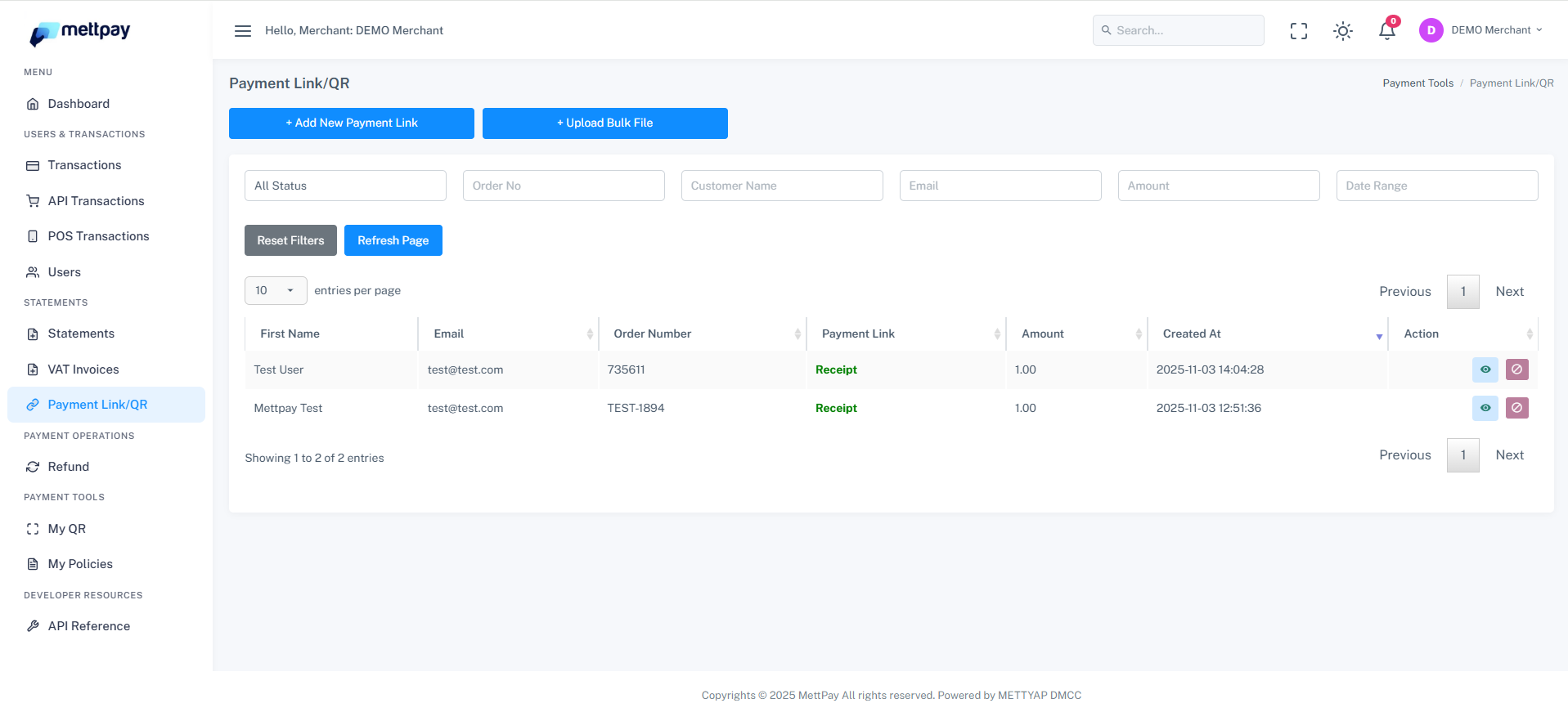
From this panel, you can download the sample Excel file and upload your completed data file once ready. The Bulk Upload supports up to 2,000 payment links per upload.
Preparing the Excel File
Download the sample Excel file and fill it carefully as per the format below:
- Email: Must be valid (e.g., [email protected]).
- Mobile: Start with 5 only (exclude +971).
- Expiry Date: Use the DD/MM/YY format.
- ui_orderid: Enter your internal order reference number.
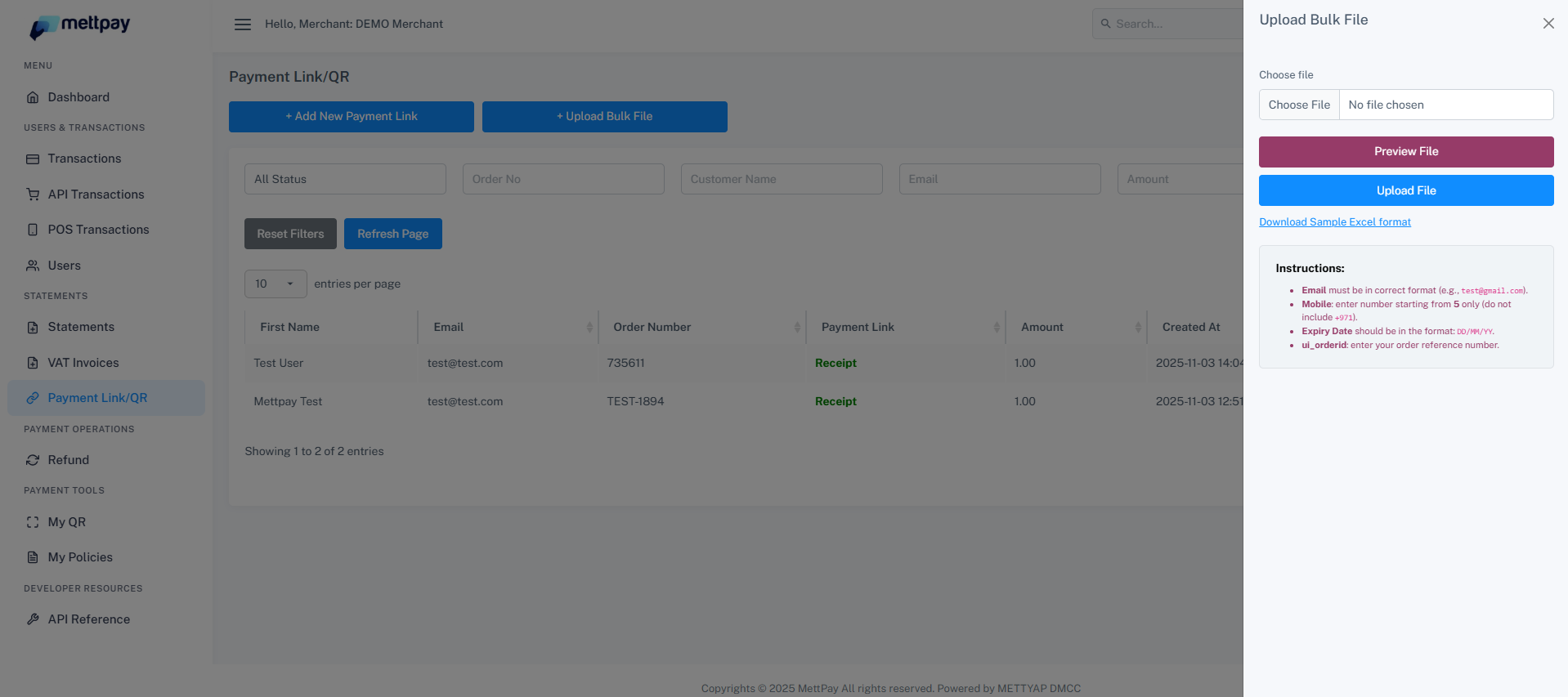
Before uploading, ensure there are no empty rows or invalid data in the Excel file.
Uploading the Excel File
Once your Excel file is ready:
- Return to the Payment Links page.
- Click on the Bulk Upload button at the top right corner.
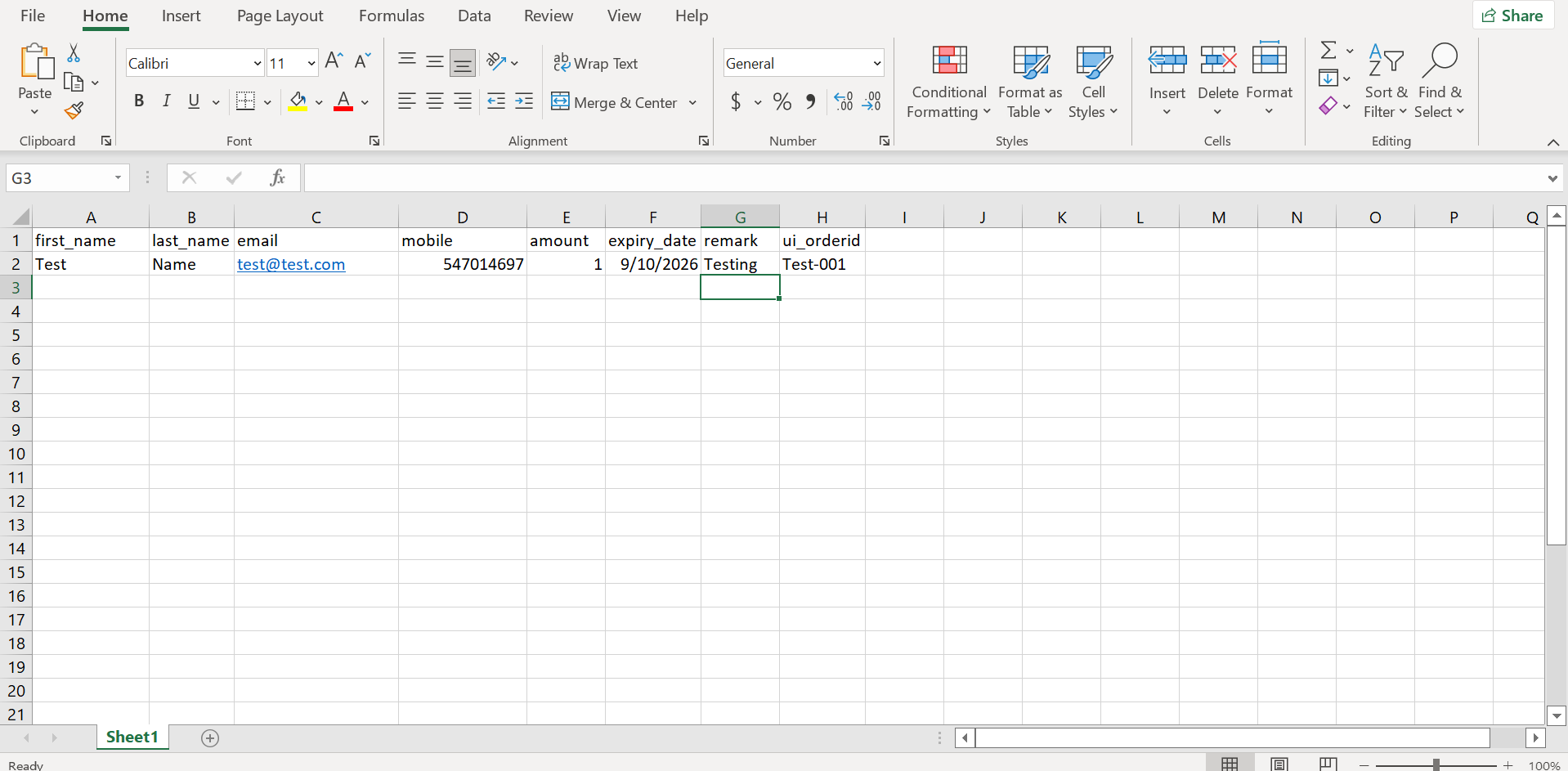
- In the side panel, click Upload File and select your Excel sheet.
- Then click Submit to start the upload process.
Payment Link Generation and Notifications
After the upload, the system automatically generates payment links for all customers listed in the Excel file.
- Each customer receives their unique payment link via SMS.
- They can open the link and complete the payment securely.
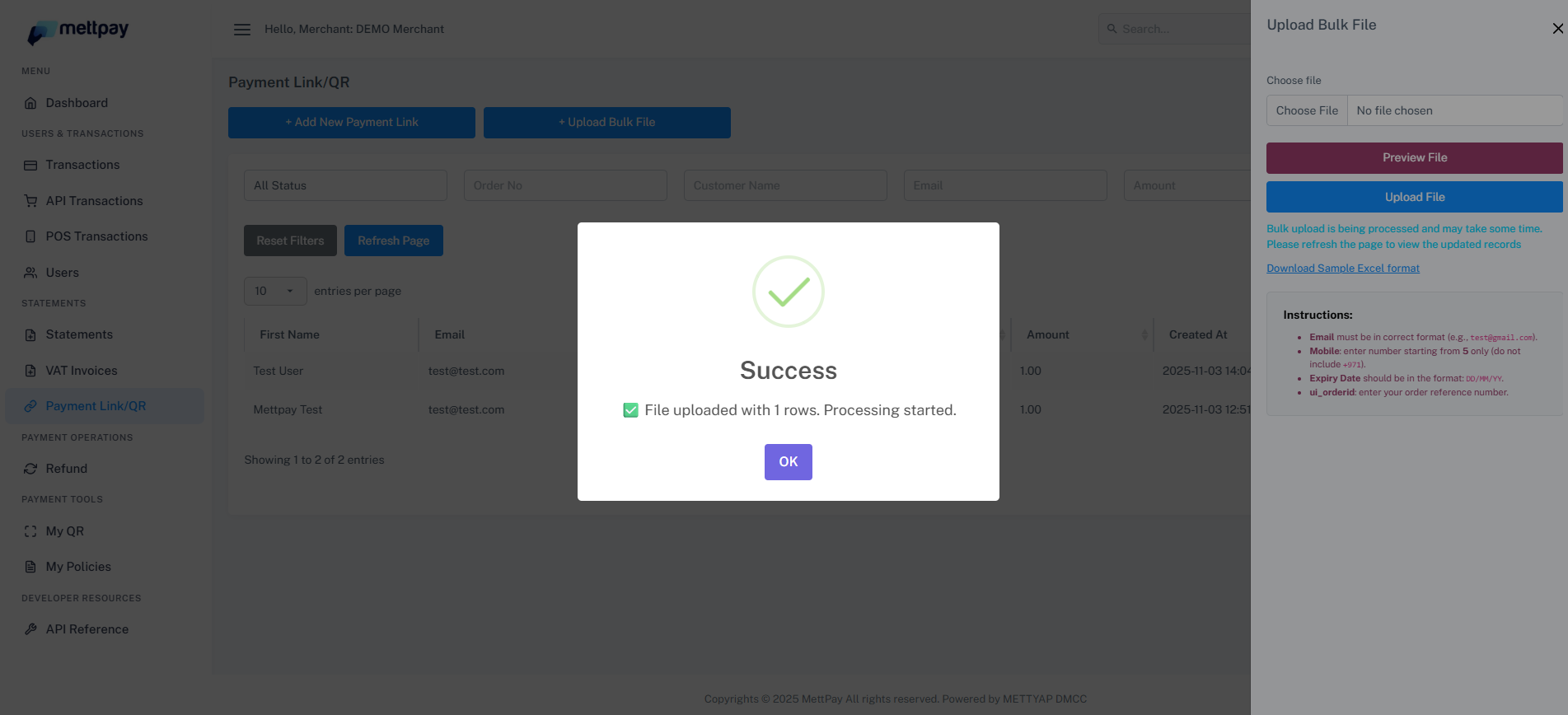
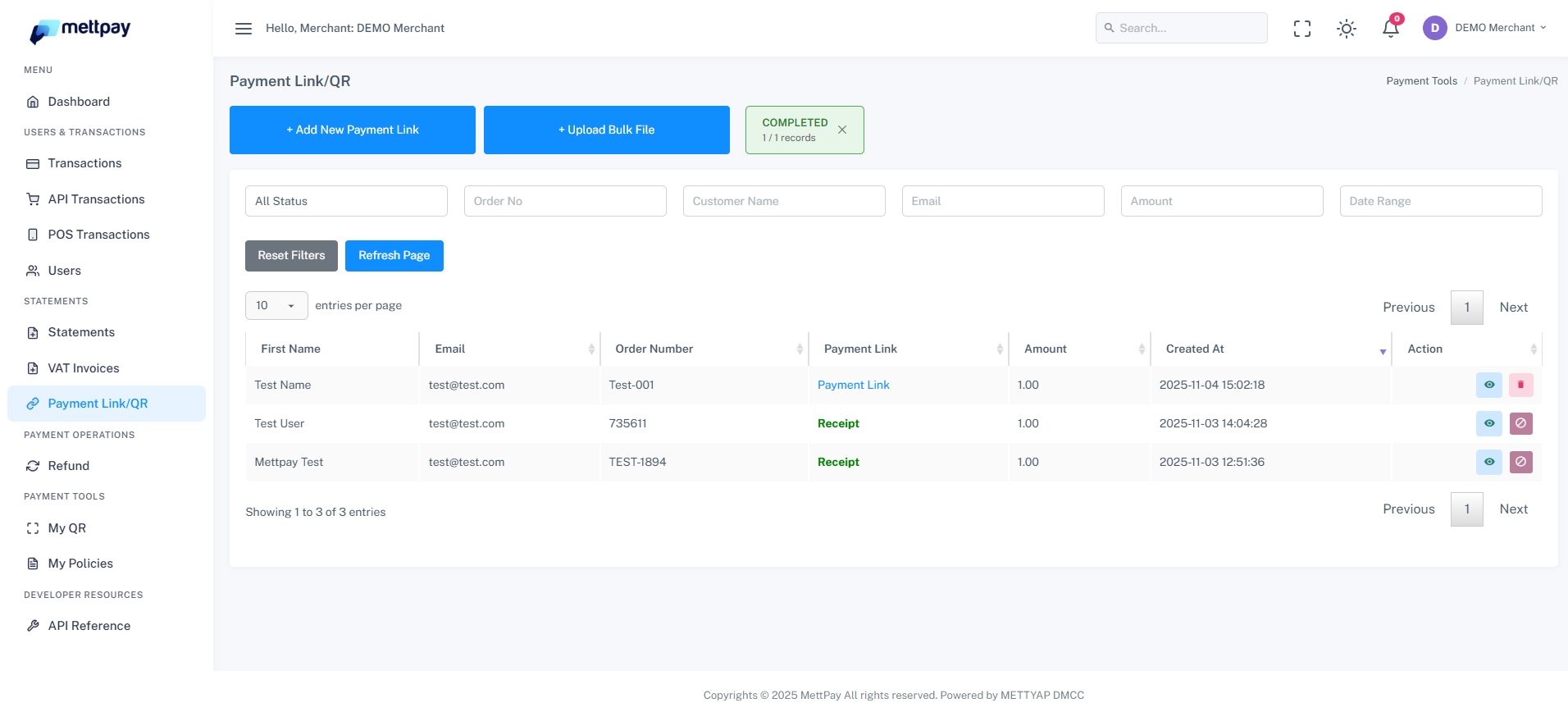
Once completed, you can track and manage all generated links and their statuses directly from the Payment Links dashboard.