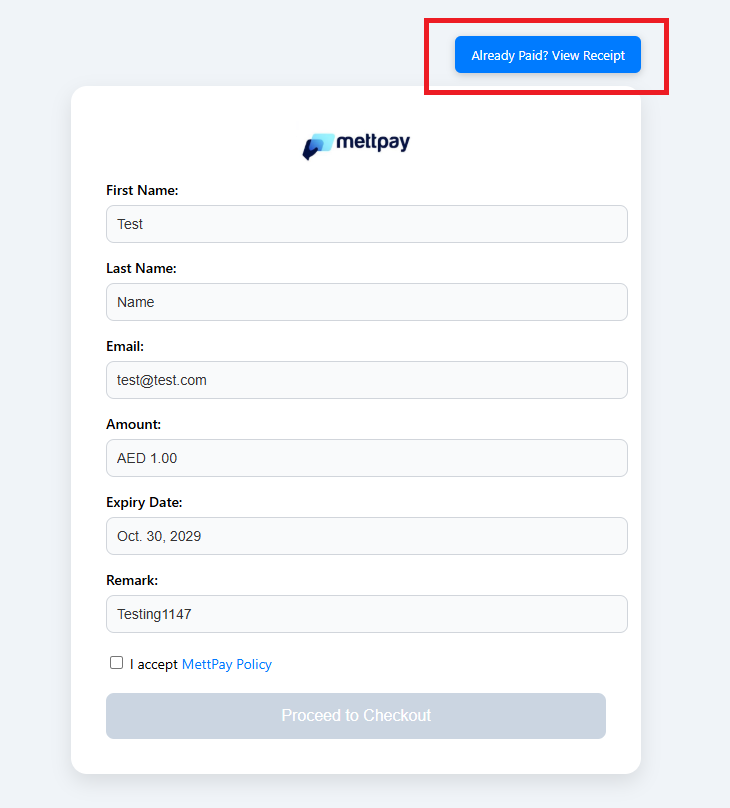
Creating a Payment Link
The Payment Link feature allows you to generate and share custom payment requests instantly through WhatsApp or email. Follow the steps below to create, send, and manage a payment link efficiently.
Accessing the Payment Link Section
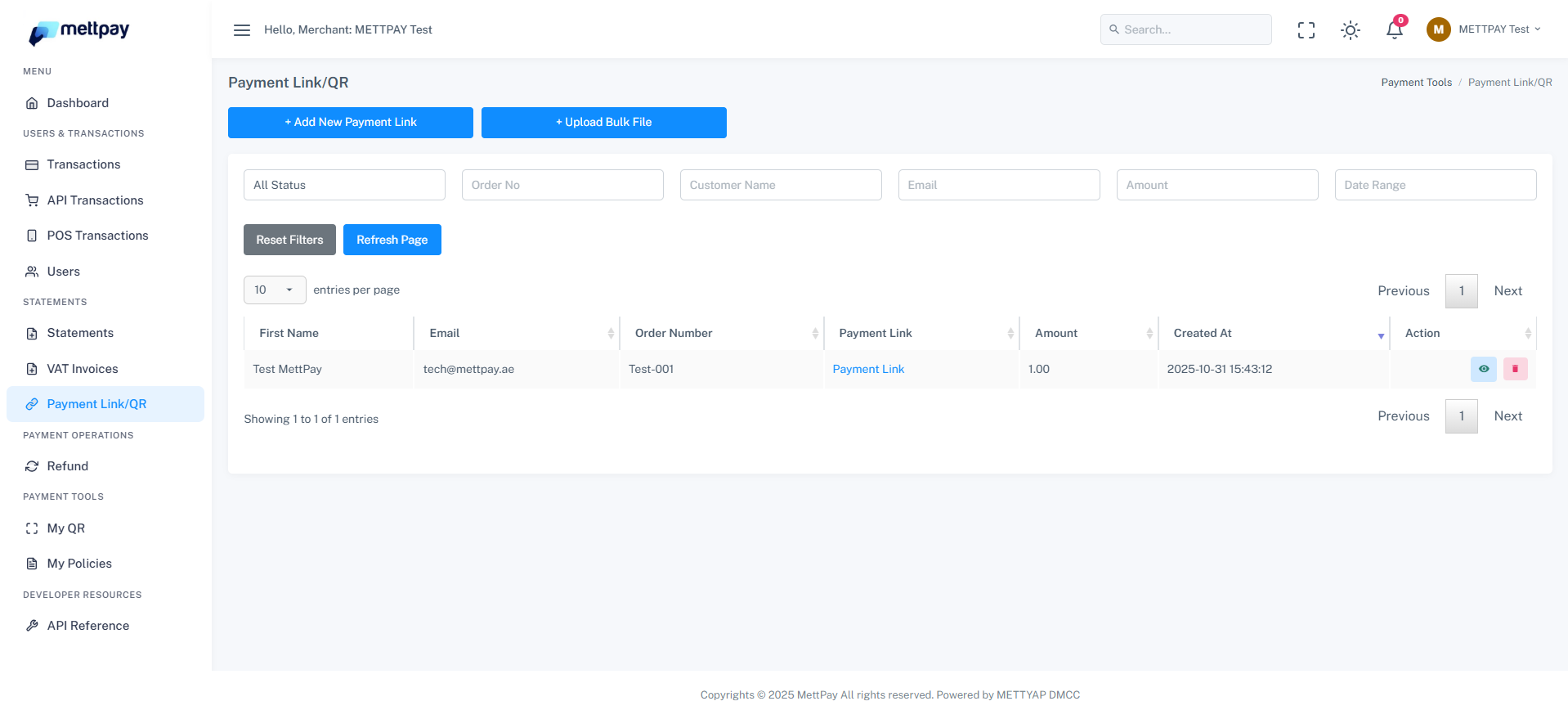
After logging in to the portal, navigate to the "Add New Payment Link" option.
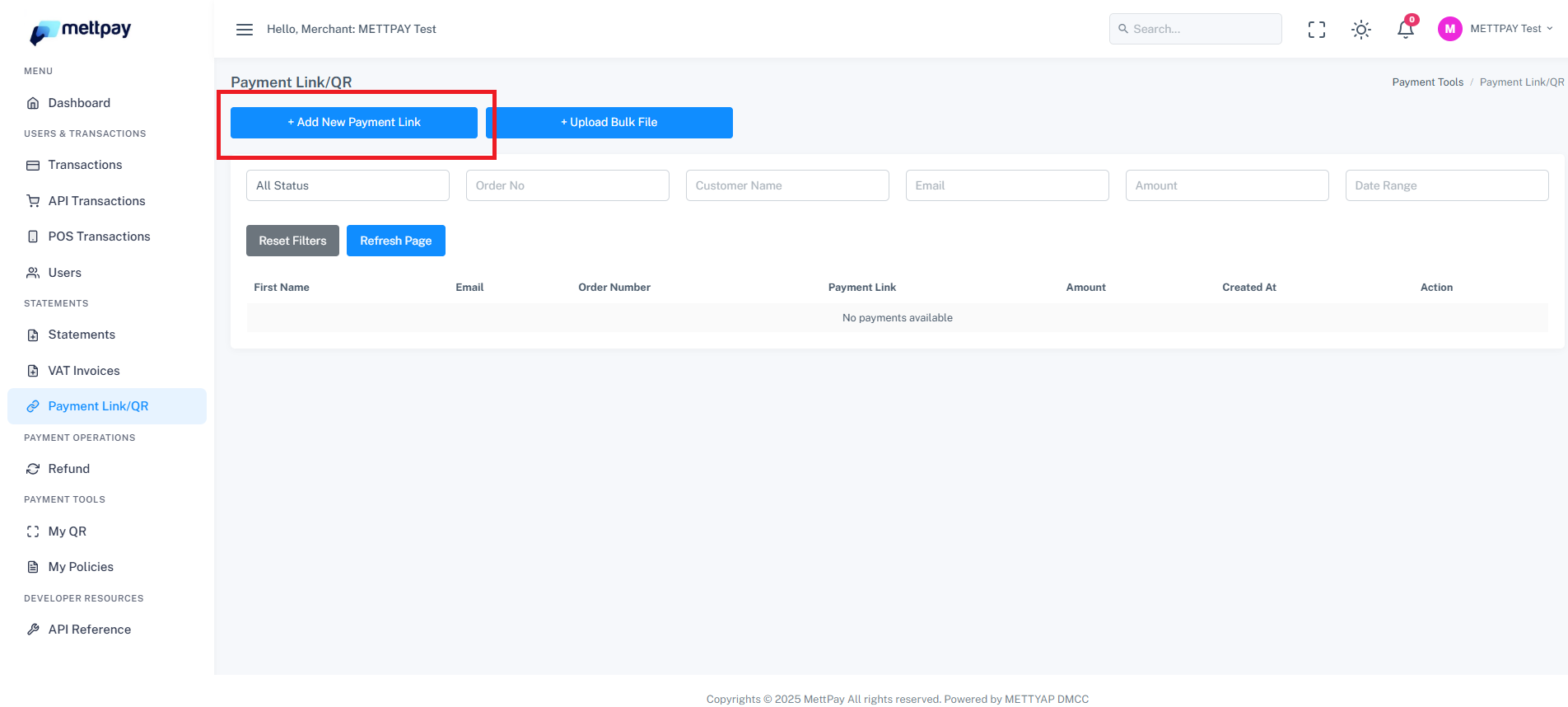
This will open a side panel where you can enter order details such as customer name, order number, and amount.
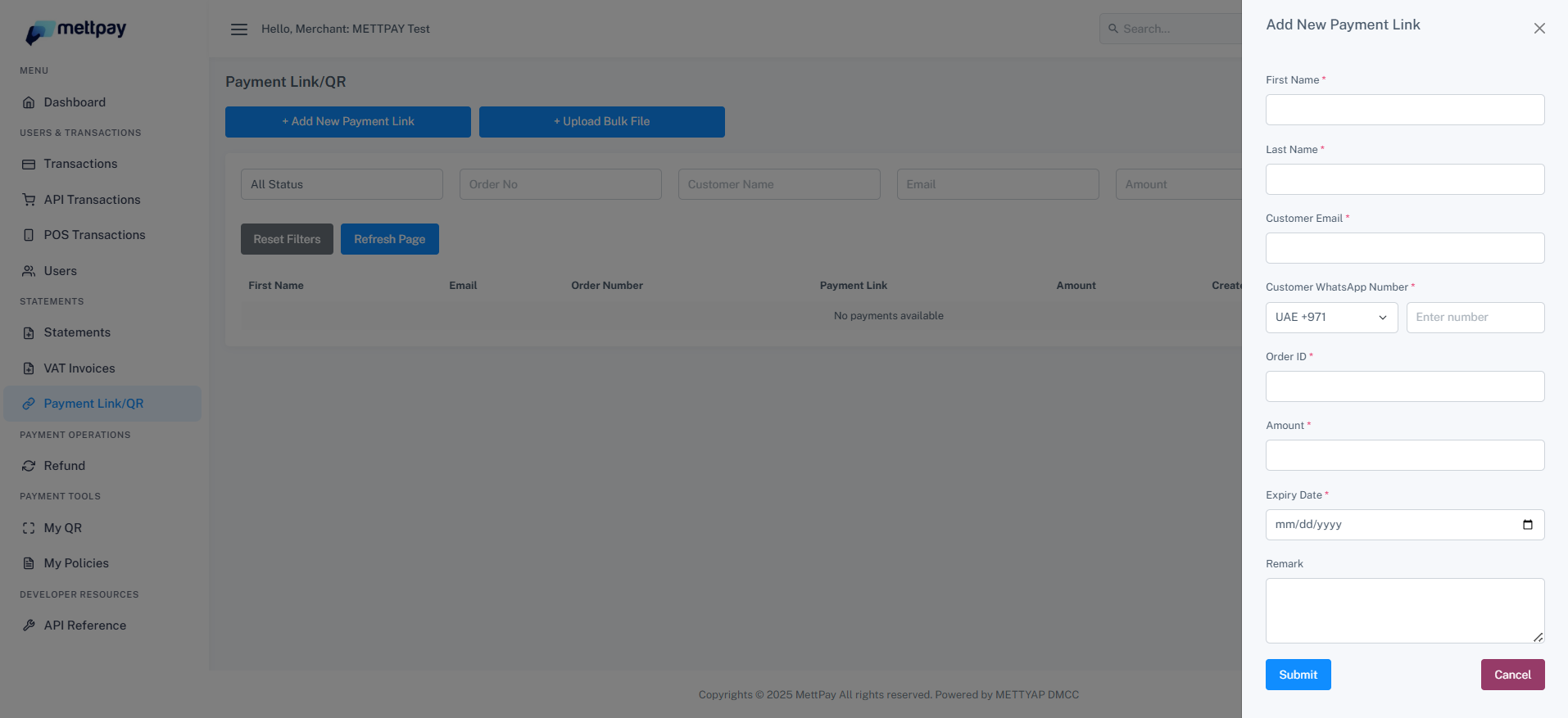
Entering Order Details and Submitting
Fill in the required order details and click the Submit button. Once submitted:
- You will be redirected to the Payment Link Table.
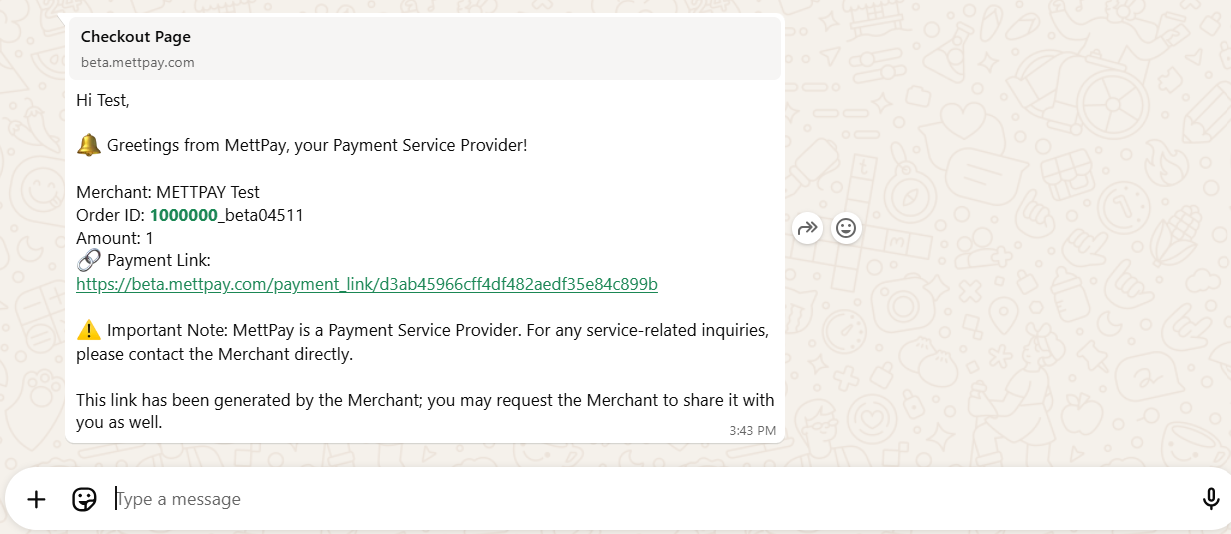
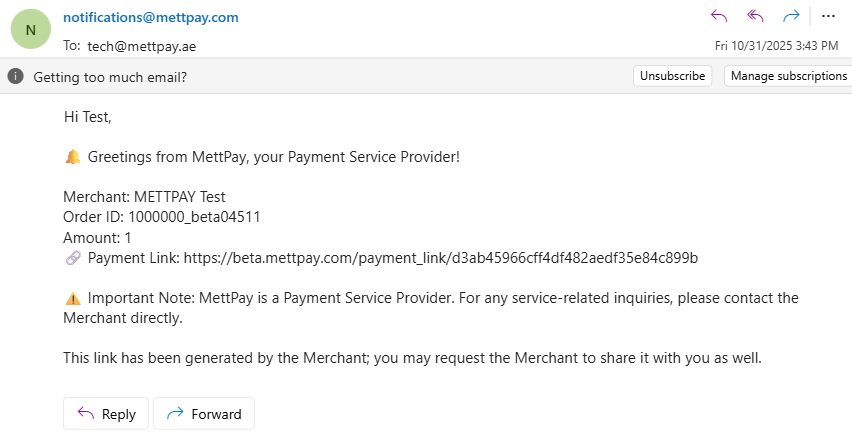
- The generated payment link and order details will automatically be sent to the client via WhatsApp and email.
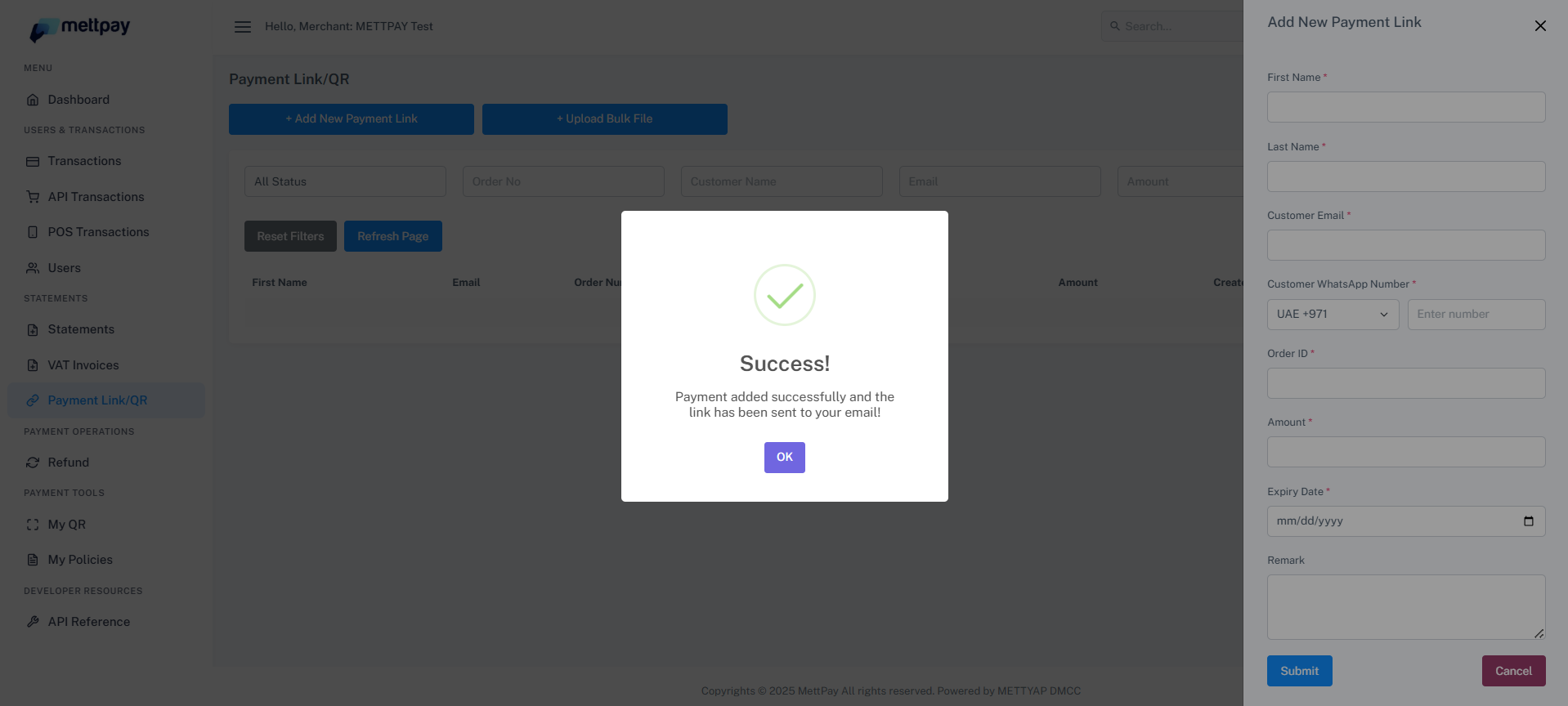
Checkout Page
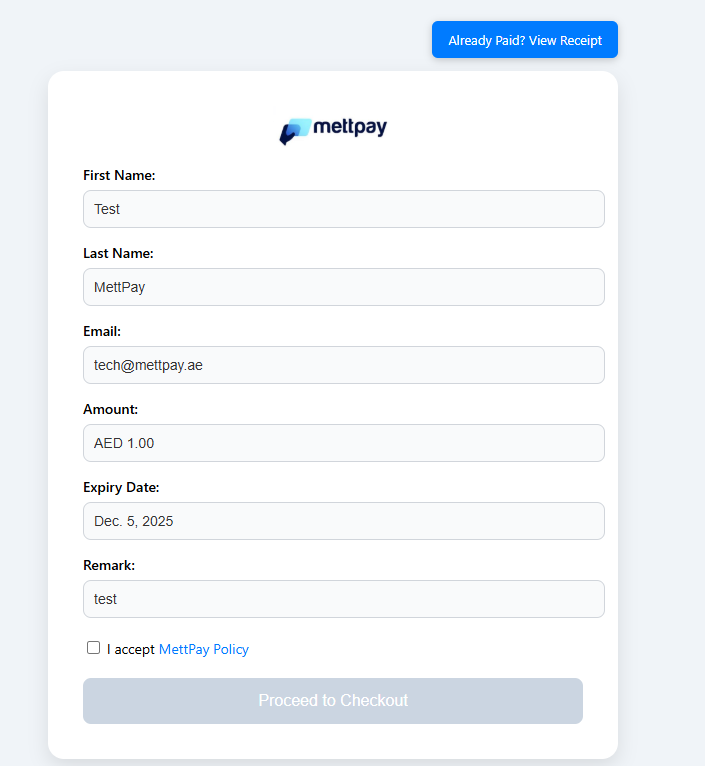
Clients can open the generated link to access the Checkout Page. Here, they must review and accept the policies before proceeding with payment.
PayBy Checkout Page
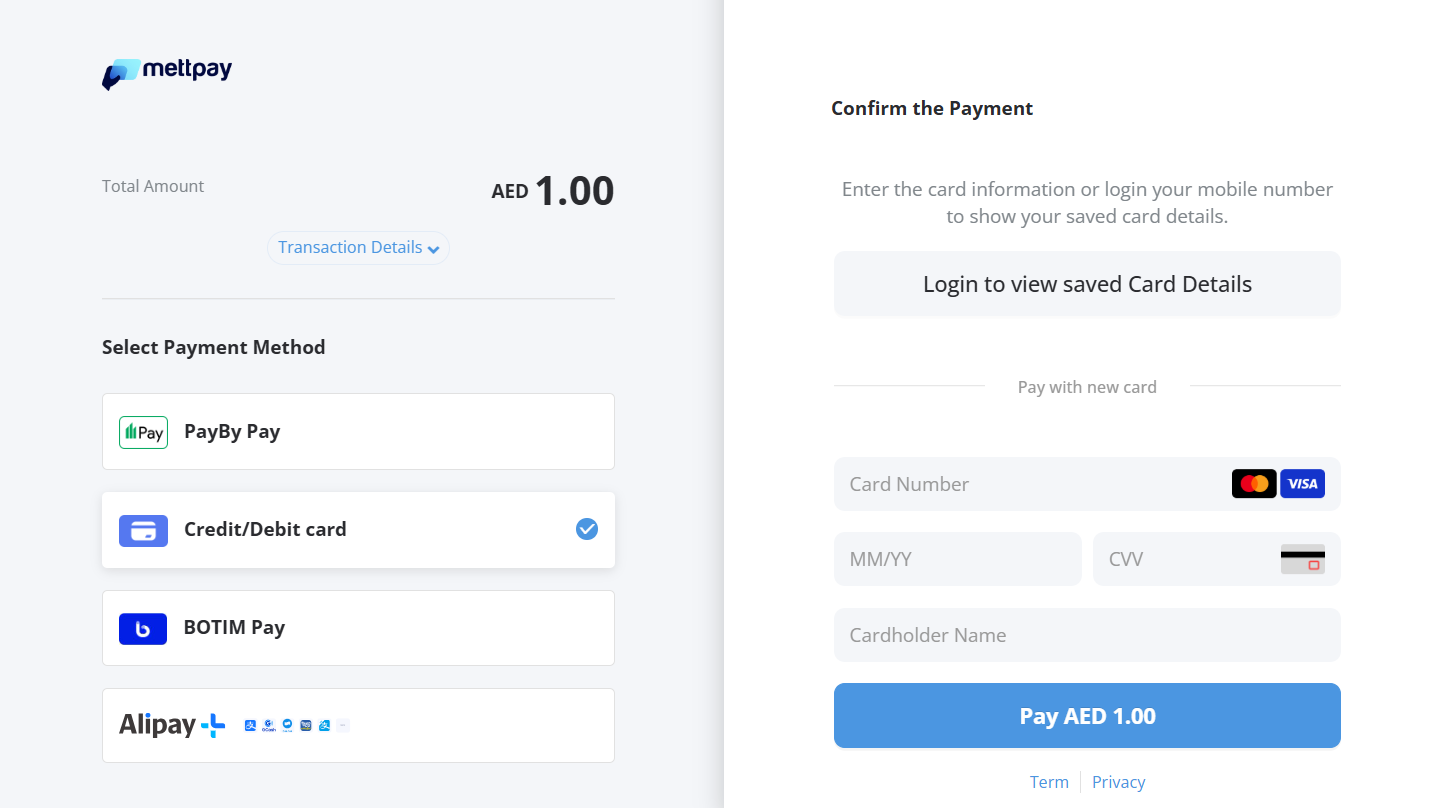
After clicking Proceed, the client is redirected to the PayBy Checkout Page where available payment options are displayed.
Making the Payment
The customer selects a preferred payment method and enters the required details. For example, when paying via card, the user must input valid card information.
Payment Confirmation
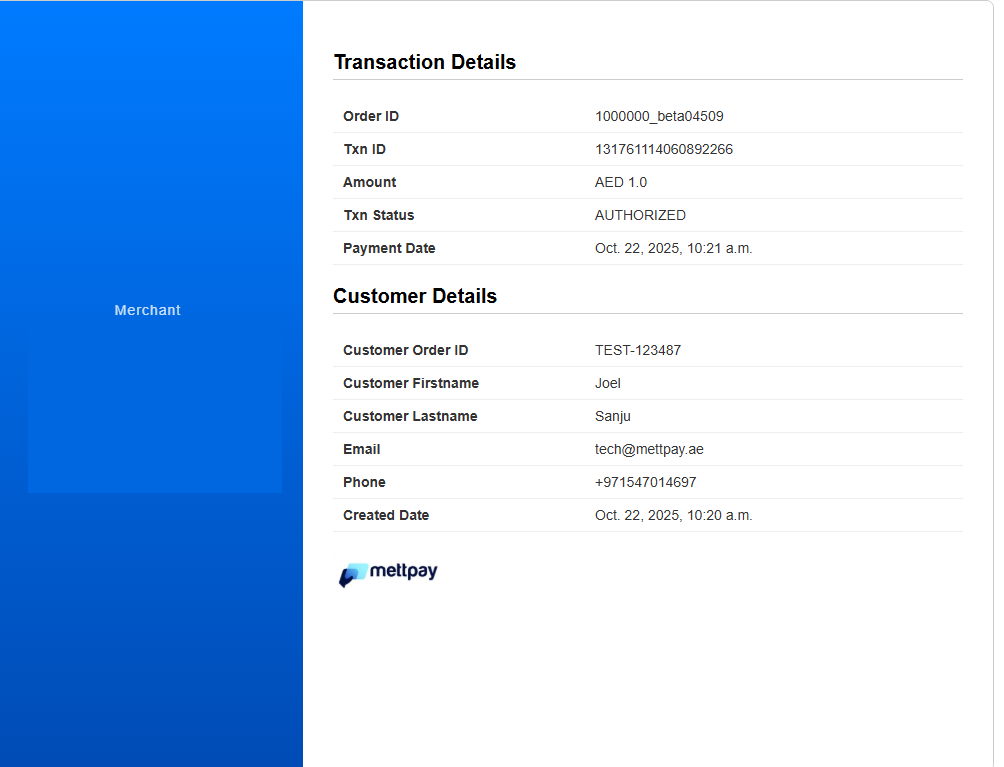
Once the payment is successfully completed (after any OTP or acquirer verification), the user is automatically redirected to the Mettpay Receipt Page.
Merchant Receipt View
On the merchant portal, the transaction will be displayed as Paid. The merchant can open and review the detailed receipt directly from their dashboard.
Alternate Option: My QR Feature
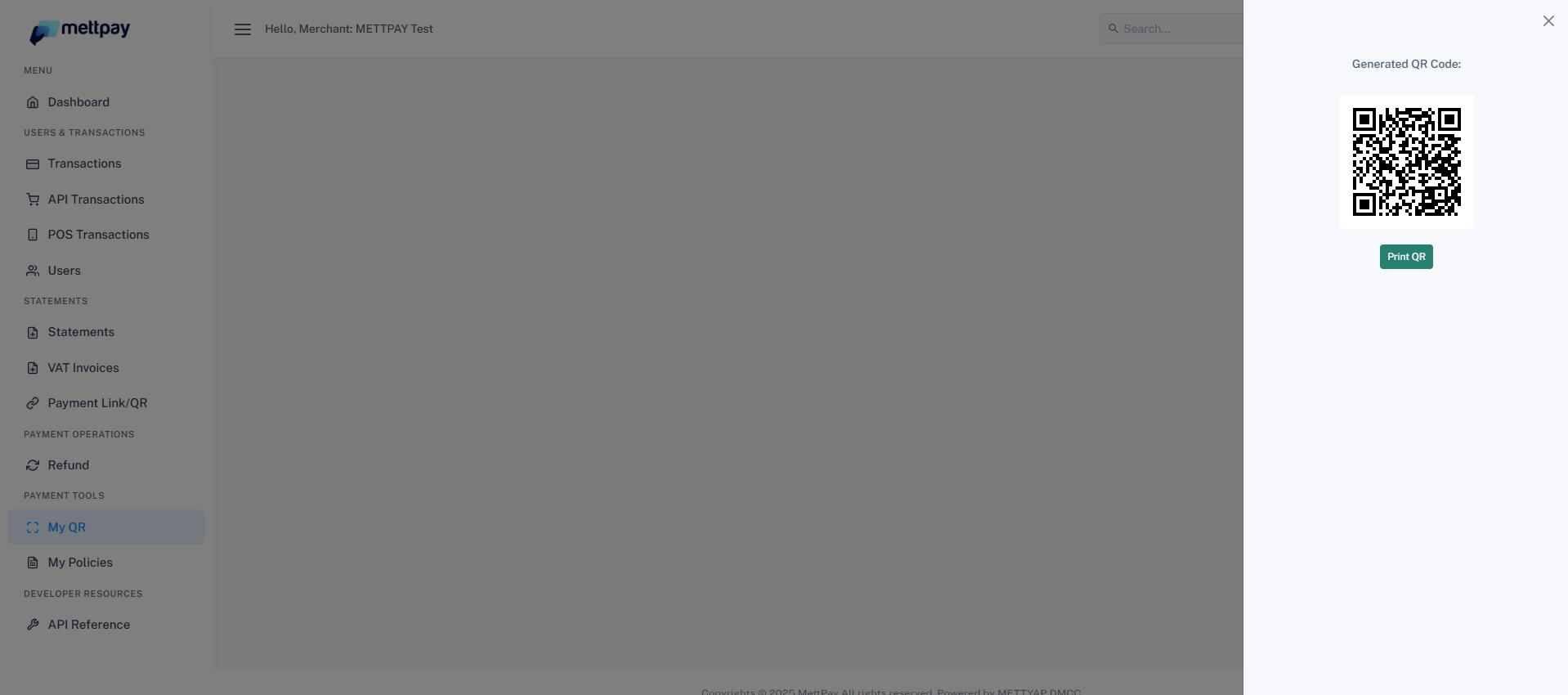
The same process can be performed using the My QR feature in the portal. In this option, the customer enters the order details manually. After submission, the flow continues from the Checkout Page, similar to the standard link method. This feature is ideal for quick, on-the-spot payments without pre-filled data.
Handling Interrupted Payments (Sync Button)
If a browser is closed or the user fails to reach the Receipt Page, the Sync Button allows retrieval of the payment receipt seamlessly.
- Ensures both merchants and clients can confirm payment status.
- Allows quick access to the receipt without support intervention.
- Prevents confusion from incomplete redirects.
Typical Use Case
- Create a payment link.
- Proceed to PayBy Checkout Page.
- Enter card details.
- If the browser closes before reaching Mettpay Receipt Page, click the Sync Button to recover the payment receipt.