
Users
The Users page displays all users grouped by their assigned merchant or branch. Access and visibility depend on your login role, allowing Admin users to manage across merchants and Branch users to view their specific data only.
User Access Overview
The Users tab lists all registered users along with their merchant details. Each record includes key information such as:
- Merchant Name: The merchant associated with the user account.
- Merchant ID: Unique identification number for each merchant.
- User Name: The name of the registered user.
- Email: The user’s email address used for login.
Admin User Privileges
If you are logged in as an Admin user, you have extended access rights across all branches and merchants:
- View all users under every branch or merchant group.
- Switch between merchants to view their specific Transactions, Statements, or POS Transactions.
- Quickly auto-login into a merchant’s account to check their operational data and records.
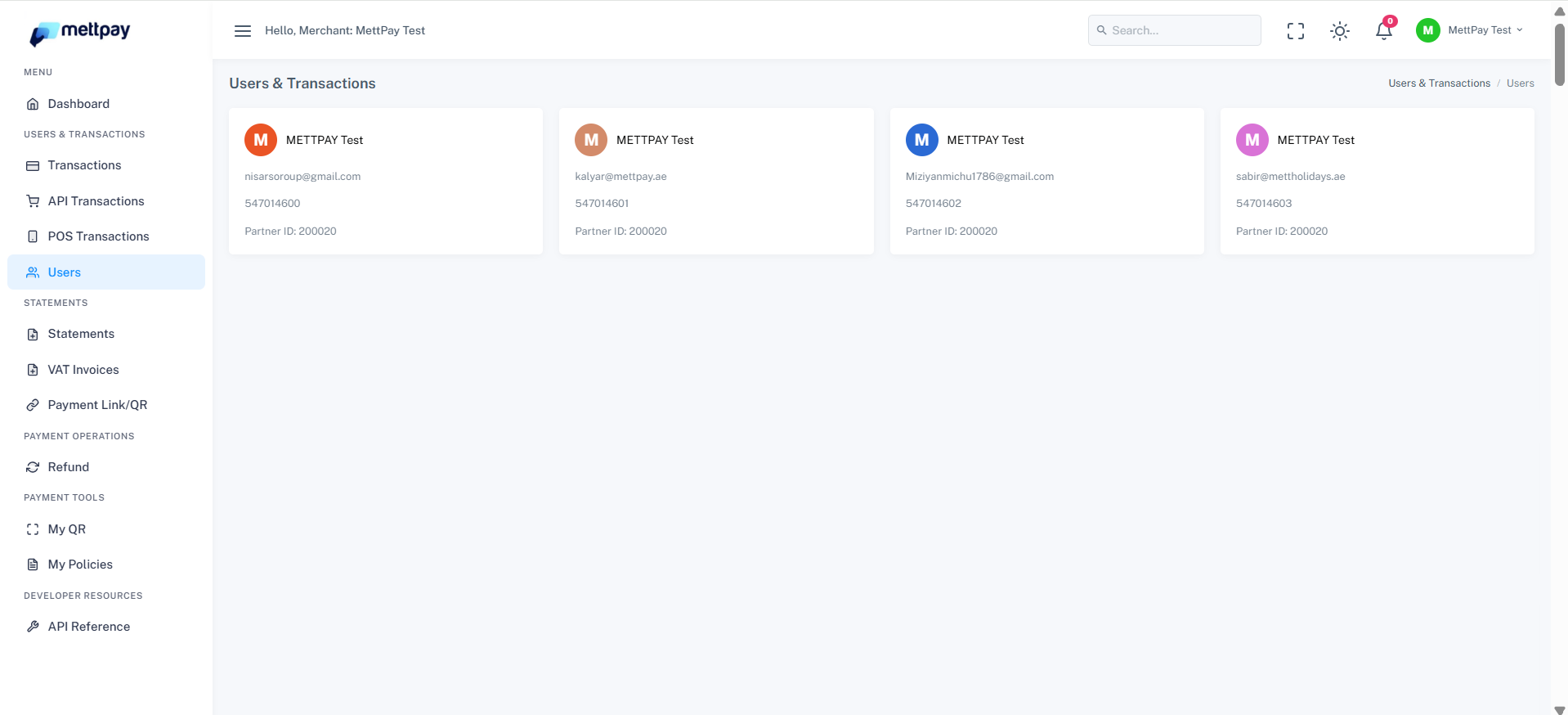
Branch User Access
When logged in as a Branch user, access is limited to the data and users within your assigned branch only. You cannot view or switch to other merchants.
Navigating the Users Page
To view details or auto-login as a merchant:
- Go to the Users page from the sidebar menu.
- Locate the merchant in the list and click on the Merchant Name.
- This action will automatically log you in to the selected merchant’s account and allow you to view their specific data.
Reset Password
To reset your password, follow these simple steps:
- Go to the top-right corner of the portal and click on Reset Password.

- You’ll be redirected to the password reset page where you can enter your registered login email ID.

After submitting your email, an OTP (One-Time Password) will be sent to your registered inbox.
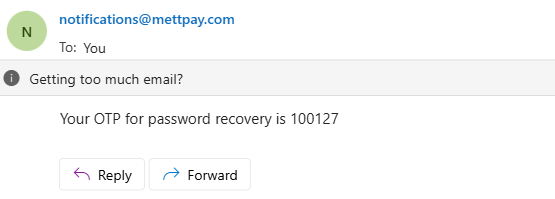
Enter the received OTP on the reset page and create your new password to complete the process.
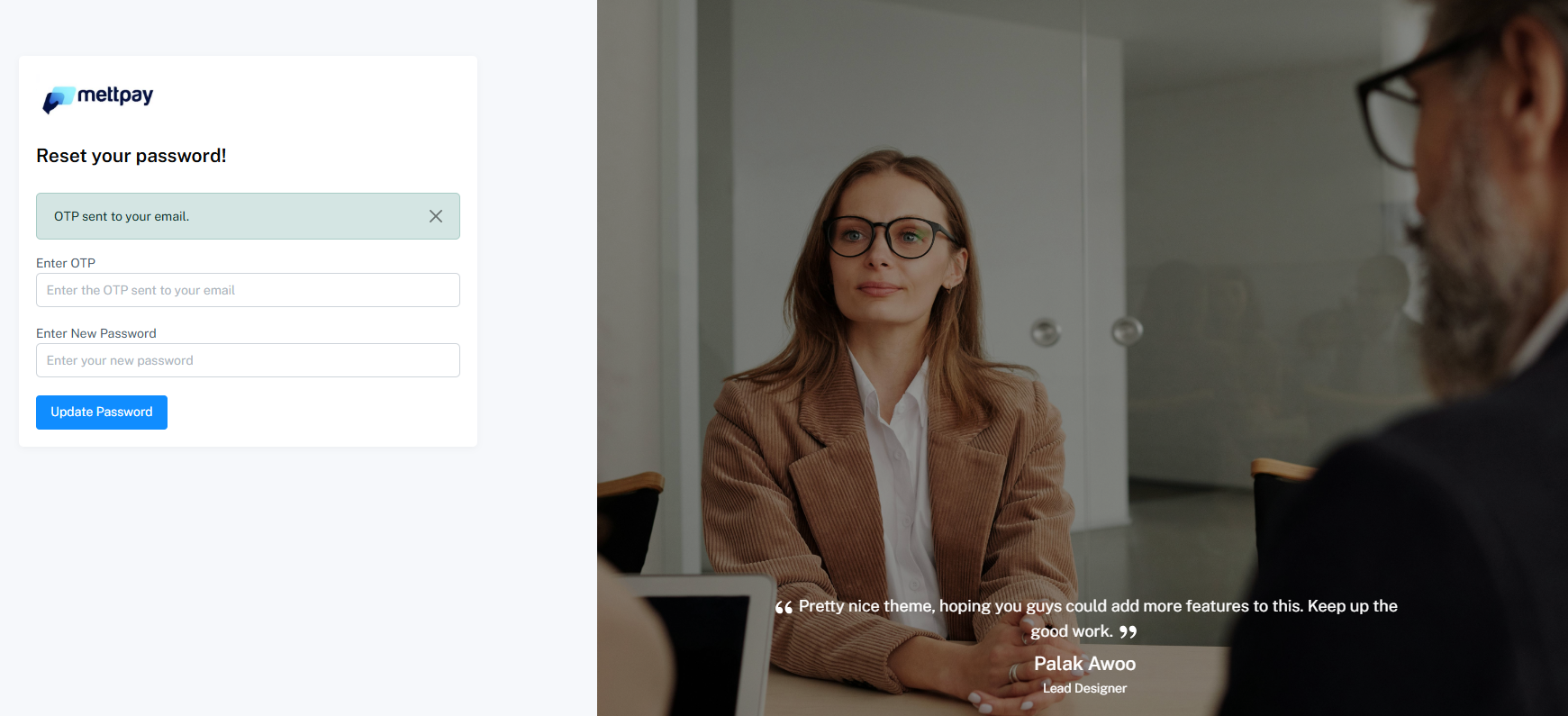
Once done, your password will be successfully updated. You can now log in using your new credentials and continue accessing your account securely.