
Transactions
Explore all transactions processed through Payment Links and eCommerce. Easily filter, review, and export transaction data with clarity and precision.
Transaction Overview
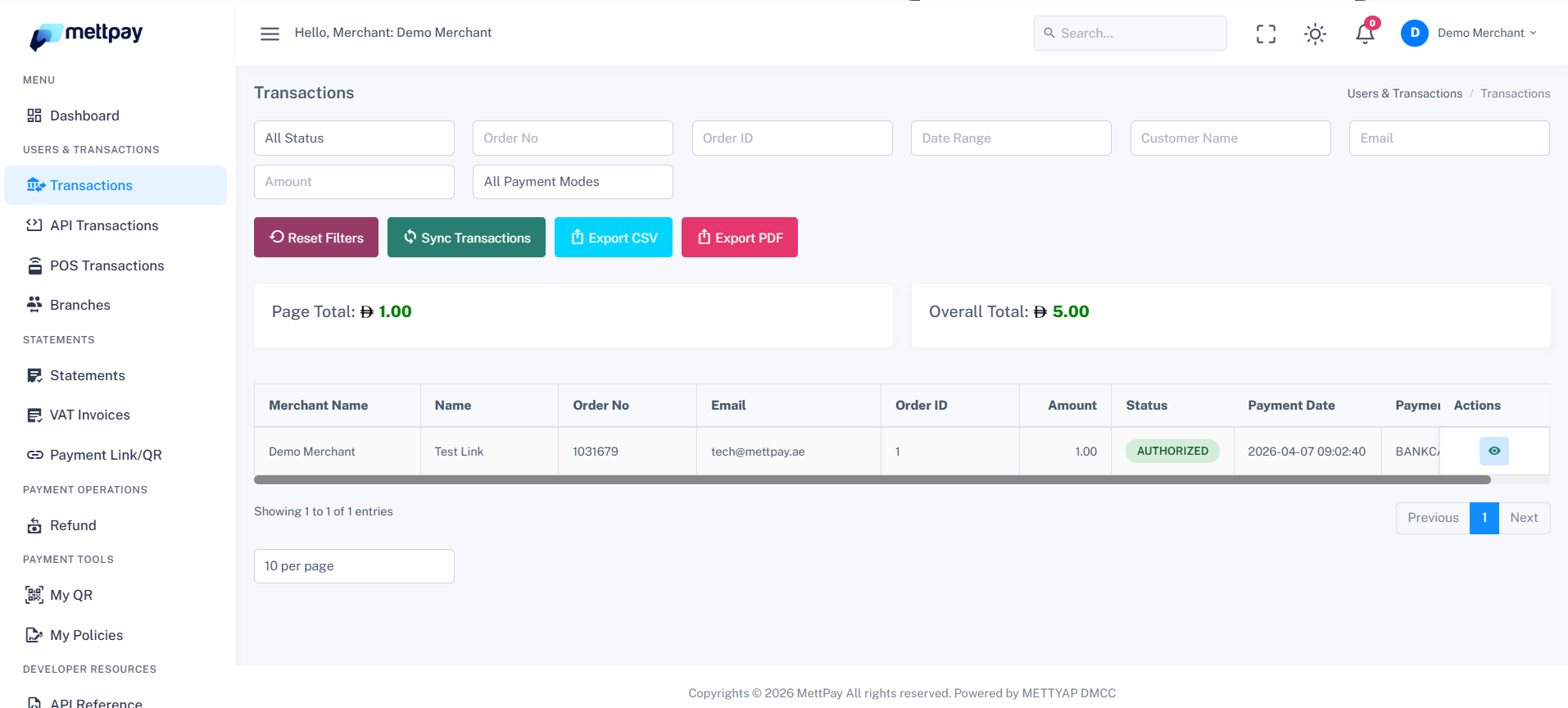
Each transaction record includes the following details:
- Customer Name: The name of the customer.
- Order Number: Reference number of the payment order.
- Email: Customer's email address.
- Order ID: Unique identifier for the order.
- Amount: Transaction amount.
- Status: Indicates whether the payment is 'Authorized' (settled) or 'Failure' (not processed).
- Payment Date: Date when the transaction occurred.
- Payment Mode: Method used for payment, such as Bank Card or Apple Pay.
Filtering Transactions
Utilize the filters at the top of the page to search transactions by:
- Status: Choose between 'Authorized' or 'Failure'.
- Date Range: Specify a date range for the transactions.
- Amount: Filter by specific transaction amounts.
- Customer Name or Email: Search for transactions associated with a particular customer.
- Payment Mode: Select the payment method used, such as Bank Card or Apple Pay.

Viewing Transaction Details
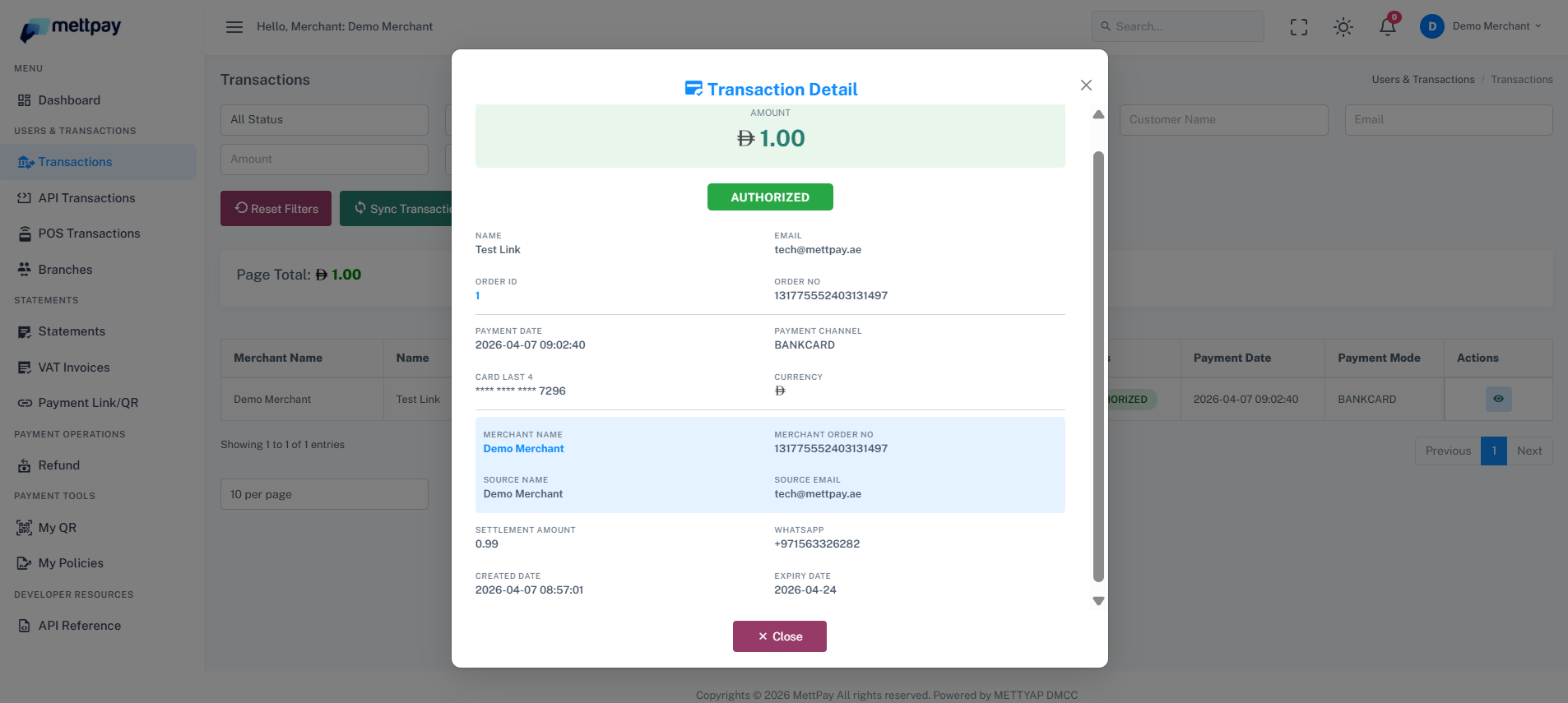
Click the eye icon next to any transaction record to view detailed information, including customer and payment details.
Exporting Transaction Data
Export transaction data for reporting or analysis in the following formats:
- CSV: Suitable for spreadsheet applications.
- PDF: Ideal for generating printable reports.

Pagination and Totals
At the bottom of the transaction table:
- Page Settled Total: Displays the total for the current page.
- Overall Settled Total: Shows the total for all transactions.
- Rows Per Page: Select the number of rows to display per page (e.g., 5, 10, 20).
